Browser creative tool

Make ideas tangible with an ai image generator free online

An ai image generator free online gives you a direct path from a written idea to a visual starting point. Describe the subject, guide the look, and refine the result without installing desktop software.

Free to start · no signup

One prompt, several creative starting points

The useful advantage of an online image workflow is not only speed. It gives different kinds of creators a shared place to test direction, compare variations, and move from rough thought to visible concept.

Designers

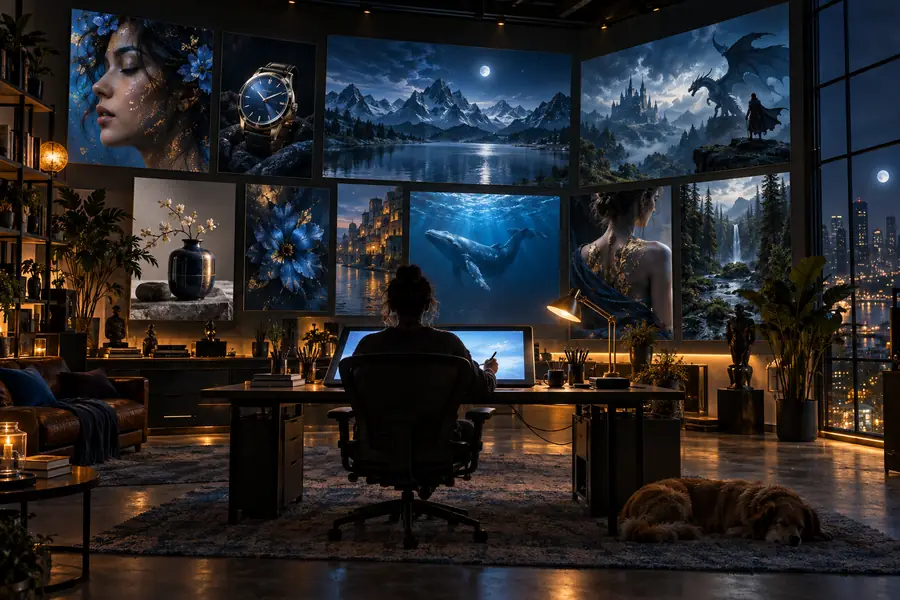
A designer needs three visual directions for a landing page before committing to a layout. For more controlled revisions, pair this workflow with an ai image editor.

Generate moodboards, hero concepts, and alternate compositions while the idea is still flexible.

ai image editor
Home planners

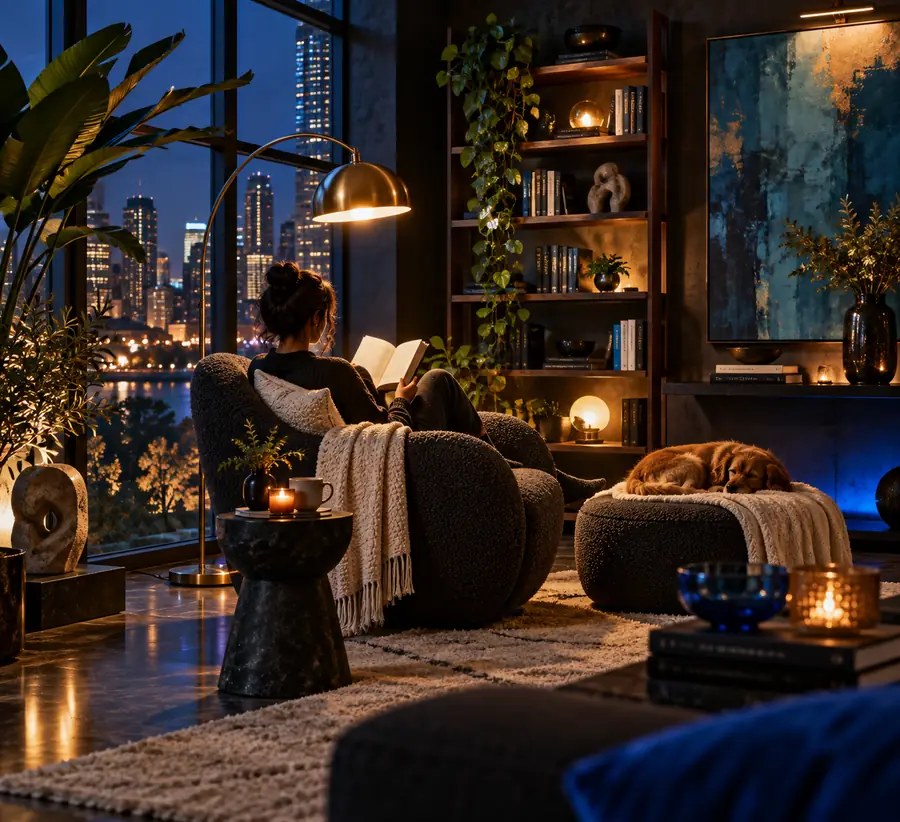
A homeowner wants to explore a calm kitchen, compact office, or refreshed living room from a plain-language brief. The best ai image generator for home design can help turn those preferences into visual references.

Compare materials, lighting, color palettes, and furniture arrangements before making a real-world decision.

best ai image generator for home design

Content creators

A creator needs a thumbnail, article illustration, or social concept without arranging a full photo shoot. Starting with ai image generator examples free can make prompt planning easier.

Build a consistent set of visual ideas that can be selected, cropped, and adapted to different channels.

ai image generator examples free

Product teams

A small team is discussing a new product but has no finished photography or prototype render. A text-to-image workflow can make the conversation more concrete.

Create early packaging, feature, and campaign concepts that help stakeholders respond to something visible.

ai image generator from text

Three browser-native mechanisms behind the workflow

An online generator is easiest to evaluate by looking at what happens at each stage: input, interpretation, and refinement. The comparison below separates the practical workflow from the creative result.

Mechanism
What it enables

Prompt input

Mechanism

Plain-language description of subject, setting, style, and composition

What it enables

A clear starting brief without drawing or 3D software

Visual interpretation

Mechanism

The model maps words into shapes, colors, lighting, and spatial relationships

What it enables

Rapid concept images from ideas that are difficult to sketch

Variation

Mechanism

Change one instruction while keeping the broader direction

What it enables

Side-by-side options for mood, framing, or subject details

Iteration

Mechanism

Review the image, identify what feels wrong, and rewrite the prompt

What it enables

Progressive improvement through specific feedback

Browser access

Mechanism

Use the tool from a current web browser

What it enables

No local installation or specialist workstation required

Output role

Mechanism

Treat the first result as a draft rather than a final authority

What it enables

A flexible reference for design, planning, or publishing

Limits and edges to keep in mind

Online generation is useful because it removes friction, not because it removes judgment. These boundaries help you decide when a generated image is a draft, when it needs editing, and when another production method is safer.

Exact text can be unreliable

Small labels, signs, logos, and long passages may appear misspelled, rearranged, or unreadable inside the image.

Workaround

Generate the composition first, then add important typography in a design or image-editing tool.

Precise identity is difficult

A prompt can describe a person, but subtle facial details, likeness, hands, and repeated characters may change between variations.

Workaround

Use reference images where supported, keep prompts specific, and review every result before sharing.

Physical accuracy is not guaranteed

Furniture dimensions, product geometry, anatomy, and complex reflections can look convincing while still being incorrect.

Workaround

Treat outputs as concept references and verify measurements, safety, and technical details independently.

Online access depends on the connection

A browser workflow requires a working network connection and may feel less suitable for confidential material or disconnected environments.

Workaround

Avoid uploading sensitive assets and keep a local production workflow for private or regulated projects.

From a written brief to a visual direction

A written concept for a bright modern reading nook Prompt brief
A generated bright modern reading nook with oak shelves and linen seating Visual concept
The output is a direction to refine, not a promise of exact physical accuracy.

What to prepare before you generate

A little structure improves the first result. You do not need technical vocabulary, but you do need enough direction for the generator to understand what matters most.

You must have

Without every one of these the route does not run.

  • Name the main subject or scene

    Say what should be visible first.

  • Describe the intended use

    Mention a thumbnail, poster, concept board, or other purpose.

  • Choose a visual mood or style

    Examples include editorial, cinematic, minimal, playful, or hand-painted.

Nice to have

Skip any of these and the route still works — they only make it faster.

  • Add composition guidance

    Include camera angle, aspect preference, background, or empty space for text.

  • Have a reference image ready

    Useful when color, layout, or an existing subject needs to guide the result.

  • Plan one revision request

    Decide what you would change after seeing the first draft.

How the online generation flow works

The process is intentionally simple: describe, inspect, and direct the next version. Specific feedback usually produces a more useful revision than adding a long list of unrelated adjectives.

  1. 1

    Write the visual brief

    Start with the subject, setting, purpose, and mood. Add the most important details first, such as a red ceramic mug, late-afternoon light, or a centered product view.

  2. 2

    Generate and inspect

    Review the first image for composition, clarity, proportions, and missing details. Separate what already works from the one or two problems that matter most.

  3. 3

    Refine with direction

    Rewrite the prompt around the needed change: move the camera, simplify the background, adjust the palette, or replace one object. Save the strongest concept for your next step.

Frequently asked questions

These practical answers cover common questions about using an online image generator for early concepts and everyday visual work.

It is a browser-based tool that creates images from written descriptions without requiring a local installation. You provide a prompt, review the generated visual, and refine the direction through further instructions.

Yes, a browser-based workflow can be used on a phone or tablet as long as the page and prompt controls are comfortable on your screen. A larger display is usually easier when comparing variations or checking fine details.

No. Start with ordinary language that explains the subject, setting, mood, and intended use. Design experience becomes helpful when you want precise composition, brand consistency, or careful post-generation editing.

Give the prompt a clear subject and a defined visual purpose, then add only the details that influence the result. Inspect the first draft and revise one issue at a time instead of changing everything at once.

Some outputs may be suitable for immediate informal use, but important work should be reviewed for spelling, anatomy, likeness, unwanted artifacts, and rights considerations. For polished campaigns, treat generation as one stage in a broader creative process.

Start creating
Start creating